The Episode Autoplay Myth: A Pause Is a Choice
Episode autoplay can make a countdown feel like a deadline. Learn how pausing the screen restores a moment to decide whether another episode fits.
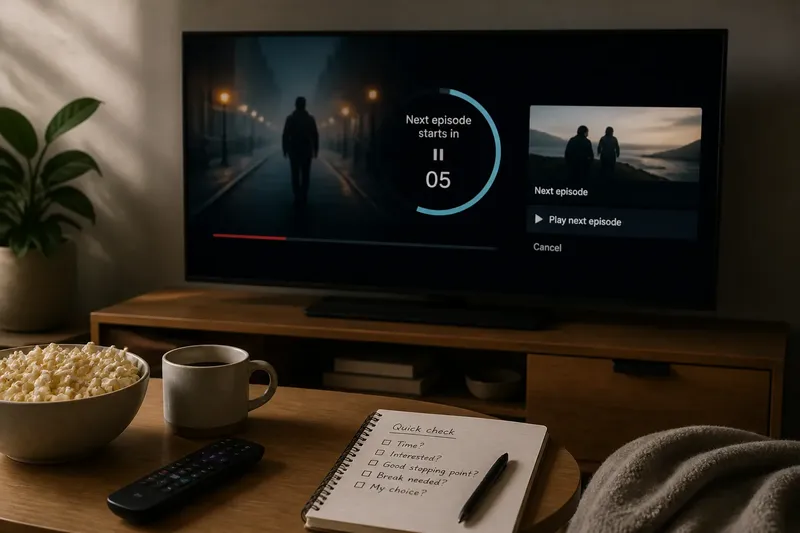
The credits roll, the next episode card appears, and a small countdown starts moving across the screen. Episode autoplay makes the next choice look already made—but the countdown is a prompt, not a command. A pause gives you room to decide whether another episode fits the evening you actually have.
The countdown’s job
Autoplay is an interface feature that starts a suggested next item after the current one ends, often following a short preview screen. Depending on the service and device, it may count down during the credits, show a “Play next” button, or begin the next episode automatically unless you intervene. The details vary, but the underlying pattern is the same: the interface makes continuing easy and stopping an action you must take.
That pattern can create a false sense of momentum. A moving timer resembles a deadline, and the preview may make the next episode feel like the natural continuation of the one you just watched. Neither means you have agreed to watch. The software is presenting a default; your attention and time remain yours to direct.
A pause changes the rhythm
Pausing does not have to mean switching off autoplay or making a grand rule about screen time. It can be as small as pressing the remote’s pause button when the countdown appears. The image stops, the preview stops demanding attention, and you can make the next decision without competing with a timer.
That brief gap is useful because the question changes. Instead of reacting to “Will I let this start?” you can ask, “Do I want another episode now?” The first question treats the interface’s default as the starting point. The second starts with your own preference.
There is no need to turn the pause into a productivity ritual. You might want to continue because the story has momentum, because you have time, or simply because watching another episode sounds pleasant. The point is not to choose the shorter option every time; it is to make the choice deliberately.
Reasons to continue or stop
A quick decision can account for both the programme and the evening around it. Consider:
- Your available time: Is another episode compatible with what you have planned next?
- Your attention: Are you still interested, or are you watching mainly because the next item appeared?
- Your stopping point: Would this feel like a satisfying place to stop, or would you rather save the episode for later?
- Your immediate needs: Would a break, a drink, or a trip to bed serve you better?
- Your intention: Did you choose to watch a second episode, or did the countdown make the decision before you noticed?
These are prompts, not a scoring system. One answer may be enough. If you know you need to stop, cancel the next episode or leave the playback screen. If you want to continue, select the next episode yourself or let it begin. Either way, the action follows your decision rather than the timer’s.
Autoplay questions answered?
Does pausing cancel autoplay?
Usually, pausing stops playback temporarily; it may not cancel the queued episode or disable autoplay. Look for a separate “Cancel,” “Stop,” or “Play next” control if you want to prevent the transition.
Can I turn autoplay off?
Many streaming services provide an autoplay setting, but its location and effect can vary by account, profile, app, or device. Check the playback settings and the service’s own instructions before changing it.
Why does the countdown feel so urgent?
A shrinking timer and moving preview create a visible sense that a decision must happen quickly. That urgency belongs to the interface’s timing, not to any real requirement that you keep watching.
What if I actually want the next episode?
Choose it without second-guessing yourself. A pause is useful because it makes room for a decision, not because stopping is always the better answer.
When a longer pause helps
Sometimes a single breath is enough; sometimes the next-episode screen arrives while you are distracted or already doing something else. In that case, leave playback paused while you finish the other task. A television remote can be awkward to handle mid-conversation, and a laptop may be playing in a crowded browser window. The useful pause is simply long enough to notice what you want.
Say you are watching one episode on a tablet while making dinner, and the next one begins counting down as you put the tablet aside. You pause playback, finish preparing the meal, then return and decide you would rather eat without a show. The observable result is straightforward: the queued episode does not start during dinner, and you can resume watching later if you choose.
What is not worth changing
You do not need to hunt through every menu, install a separate timer, or disable autoplay across every device just to make this choice. Those changes can suit someone who wants a permanent setting, but they are unnecessary if pausing at the episode boundary works for you. Likewise, there is little value in treating every continuation as a lapse. The useful distinction is between a choice you made and one you never had a moment to make.
Episode autoplay is a convenience, and a countdown is only one way an app offers it. When it appears, treat the pause button as a small control over the viewing rhythm: stop, decide, and continue only if the next episode belongs in your plans.